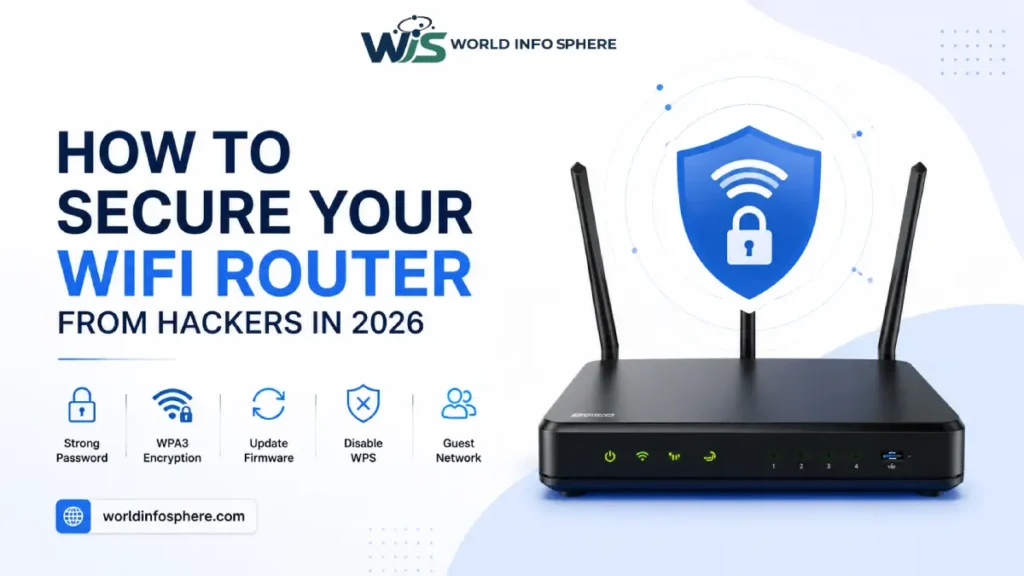
In today’s digital world, your WiFi router is one of the most important devices in your home. It connects smartphones, laptops, smart TVs, gaming consoles, security cameras, and other smart devices to the internet. If your router is not properly secured, hackers may steal your personal data, monitor your online activity, or even gain access to connected devices.
Cyber attacks on home networks are increasing every year because many users still ignore basic security settings. A secure WiFi network protects your online privacy, banking details, passwords, and family information from cyber criminals.
If you want to improve your overall online safety, you should also read our detailed guide on How to Stay Safe Online in 2026 (Most People Ignore These Risks) where we explain modern internet threats and smart safety practices.
Why WiFi Security Matters in 2026
Modern hackers no longer target only large companies. Today, home users are also common targets because many people use weak passwords, outdated routers, and insecure WiFi settings.
Your WiFi network acts as the main gateway to all connected devices in your home. If hackers gain access to your router, they may:
- Steal passwords
- Track browsing activity
- Access smart home devices
- Spread malware
- Launch cyber attacks using your internet connection
As cyber threats continue evolving, understanding modern digital risks is becoming essential. You can learn more about emerging security dangers in our complete guide on Cybersecurity: Definition, Types, Threats, Trends, and Best Practices.
Real-Life Example:
Many users still use simple passwords like “wifi1234” or “12345678.” Hackers nearby can crack these passwords within minutes using freely available tools.
Official cyber security experts from CISA Cybersecurity Agency also recommend changing default router settings immediately after installation.
How Hackers Target Home Routers
Most WiFi attacks happen because users never change factory settings. Hackers use automated software to scan nearby networks and search for weak security configurations.
Common router attack methods include:
- Weak passwords
- WPS exploitation
- Firmware vulnerabilities
- Fake login pages
- Malware infections
- Remote access abuse
Hackers may also create fake WiFi networks that look similar to legitimate ones. Once users connect, attackers can capture browsing data and login credentials.
These fake login pages often work similarly to phishing attacks. If you want to understand how scammers trick users online, read our guide on What is Phishing Email? How to Identify It and Easy Ways to Protect Yourself.
Real-Life Example:
A person connects to “Free_Cafe_WiFi” at a public location. However, the network actually belongs to a hacker sitting nearby. Once connected, the attacker monitors internet traffic and steals sensitive information.
Long passwords require significantly more time and effort for hackers to crack, making them much harder to break. For more security tips, read our guide on Free VPN Safe Browsing.
Change Default Router Username and Password
One of the biggest security mistakes is keeping the default router login credentials. Many routers use usernames like “admin” and passwords like “admin123.” These details are publicly available online.
The first thing you should do after installing a router is change both the admin username and password. Use a strong password with uppercase letters, numbers, and symbols.
The first thing you should do after installing a router is:
- Change the admin username
- Create a strong password
- Avoid predictable words or numbers
Strong password example:
- G8#SafeRouter2026!
Weak password examples:
- password123
- 12345678
- qwerty
Real-Life Example:
A family discovered unknown devices connected to their network because they never changed the default password printed on the router label.
For advanced account protection tips, you can also read our article on What Is AI Security? A Complete Guide to AI Threats, Risks, and Protection where we explain how attackers use modern technologies to exploit weak systems.
Enable WPA3 Encryption
Encryption protects your WiFi network from unauthorized access. Older security protocols like WEP are outdated and extremely vulnerable. WPA2 is still widely used, but WPA3 provides stronger protection.
Modern routers support WPA3 encryption, which improves password protection and makes brute-force attacks much harder.
Security comparison:
WPA3>WPA2>WEPWPA3 > WPA2 > WEPWPA3>WPA2>WEP
Benefits of WPA3:
- Stronger password protection
- Better encryption
- Improved protection against brute-force attacks
- Safer public WiFi security
Why WEP Is Dangerous:
- Easily hackable
- Outdated technology
- Weak encryption algorithms
- Unsafe for modern internet usage
Real-Life Example:
Cyber security researchers can crack WEP-protected WiFi networks within minutes using simple hacking tools available online.
Official WiFi security standards are explained by the Wi-Fi Alliance.
Update Router Firmware Regularly
Router firmware is the internal software that controls your router’s functionality and security. Manufacturers release updates to fix vulnerabilities and improve performance.
Unfortunately, many users never update their router firmware. Hackers actively search for routers running outdated software because known vulnerabilities are easier to exploit.
Why firmware updates matter:
- Fix security vulnerabilities
- Improve router stability
- Patch cyber attack risks
- Enhance device compatibility
Steps to update firmware:
- Login to router settings
- Open Firmware Update section
- Check latest version
- Install updates
- Restart router
Real-Life Example:
Thousands of outdated routers were infected with malware because users ignored important firmware updates released by manufacturers.
Cyber security experts recommend checking firmware updates at least once every month.
We have also explained this in detail in our article How to Protect Your Phone from Hackers (Complete Guide).
Disable WPS Feature
WPS stands for WiFi Protected Setup. It allows devices to connect quickly using a PIN or button. While convenient, WPS is one of the most exploited router features.
Hackers can use WPS vulnerabilities to guess PIN codes and access WiFi networks. Disabling WPS reduces the risk significantly.
How to disable WPS:
- Open router settings
- Find WPS option
- Disable feature
- Save changes
Real-Life Example:
A student noticed unknown devices connected to his network despite using a strong password. The issue was caused by WPS remaining enabled on the router.
Many cyber security experts recommend disabling WPS permanently.
Change Your WiFi Network Name (SSID)
Your SSID should never reveal personal details or router information.
Avoid names like:
- Bharat_WiFi
- BharadiyaFamily
- JBLink_Home
- JioFiber_5G
These names reveal:
- Your identity
- Router brand
- Internet provider
- Possible router vulnerabilities
Better SSID examples:
- SecureWave
- BlueNode24
- SilentSignal
- HomeLinkNet
Real-Life Example:
Some hackers specifically target routers from certain manufacturers because they know common weaknesses in older models.
Changing the SSID improves privacy and reduces predictable targeting.
Create a Guest Network
Most modern routers support guest networks. This feature creates a separate WiFi network for visitors and smart devices.
Benefits:
- Protects primary devices
- Limits unauthorized access
- Improves IoT security
- Isolates vulnerable devices
Use guest networks for:
- Visitors
- Smart TVs
- Security cameras
- Smart speakers
- IoT devices
Real-Life Example:
A smart home camera infected with malware can sometimes expose the entire network. A guest network limits the damage by isolating vulnerable devices.
Many smart devices receive poor security updates, so keeping them separated is important.
Use a Strong WiFi Password
Your WiFi password is your first line of defense against hackers. Weak passwords are one of the biggest causes of home network breaches.
Strong password tips:
- Use 16+ characters
- Add symbols and numbers
- Avoid dictionary words
- Never reuse passwords
Strong example:
- T9#SecureWiFi2026!
Weak examples:
- password
- wifi1234
- 12345678
Password managers can help securely store complex passwords.
Real-Life Example:
A nearby attacker using password-cracking software can break weak passwords within minutes. Longer passwords dramatically improve security.
Turn Off Remote Management
Some routers allow remote access through the internet. While useful for advanced users, remote management increases security risks.
If you do not need this feature, disable it immediately.
Why remote management is risky:
- Exposes router login page online
- Increases brute-force attacks
- Allows unauthorized remote access
- Creates additional attack surfaces
Steps:
- Login to router panel
- Open Remote Management settings
- Disable feature
- Save settings
Real-Life Example:
Many users unknowingly expose their routers online because remote management remains enabled by default.
Hackers constantly scan the internet searching for vulnerable routers.
Use a VPN for Extra Protection
A VPN encrypts internet traffic and improves online privacy. Although a VPN does not replace router security, it provides an additional protection layer.
VPN benefits:
- Encrypts browsing activity
- Hides IP address
- Protects public WiFi usage
- Improves online privacy
VPNs are especially useful when:
- Traveling
- Using public WiFi
- Working remotely
- Accessing sensitive accounts
Real-Life Example:
A traveler using hotel WiFi without a VPN may expose sensitive data to attackers sharing the same network.
Understanding modern digital threats is also important because AI-powered cyber attacks are increasing rapidly. Learn more in our article on What Is AI Security? A Complete Guide to AI Threats, Risks, and Protection.
Official VPN explanation: Cloudflare VPN Learning Center
Secure Smart Home Devices
Smart home devices often have weak default security settings. Many users focus only on router protection while ignoring connected devices.
Devices requiring extra security:
- Security cameras
- Smart TVs
- Alexa speakers
- Smart bulbs
- Doorbell cameras
Security tips:
- Change default passwords
- Update firmware regularly
- Disable unused features
- Use guest networks
- Avoid unknown brands
Real-Life Example:
Several smart camera brands have faced security issues because users never changed default passwords after installation.
As smart homes become more common, IoT security is becoming increasingly important worldwide.
Signs Your WiFi May Be Hacked
Hackers sometimes access networks silently. Recognizing warning signs early can prevent serious damage.
Common signs:
- Slow internet speed
- Unknown connected devices
- Router restarting automatically
- Unusual data usage
- Browser redirects
- Settings changing unexpectedly
How to check connected devices:
- Open router admin panel
- View connected devices
- Remove unknown devices
- Change WiFi password immediately
Real-Life Example:
A user noticed internet speed dropping every evening. After checking the router dashboard, multiple unknown devices were found connected to the network.
If your accounts are also receiving suspicious login emails, it may indicate phishing activity. Learn how scammers operate in our guide on What is Phishing Email? How to Identify It and Easy Ways to Protect Yourself.
Final WiFi Security Checklist
Before finishing, use this quick checklist to improve your home network security.
Security Checklist:
- WPA3 enabled
- Strong WiFi password used
- Router firmware updated
- WPS disabled
- Guest network active
- Default credentials changed
- Remote management disabled
- Smart devices secured
- Unknown devices removed
- VPN enabled for sensitive browsing
Following these steps can significantly reduce the chances of your WiFi network being hacked.
Also read this article:
How to earn money using AI Tools? Amazing Tips 2026
What is Virtual Reality (VR) ?: Explore the Future of Digital Technology
How AI is Transforming Small Businesses | Business Growth Guide
Top 10 Free AI Tools for Students
How to Earn Money from Instagram at Home
Best Cyber Security AI Tools: AI-Powered Security Solutions Guide
What Is a White Hat Hacker? Complete Guide for Beginners
Conclusion
WiFi security is no longer optional in 2026. As cyber threats continue growing, protecting your router and connected devices is essential for maintaining online privacy and digital safety.
Most home network attacks happen because users ignore simple security settings like strong passwords, firmware updates, and encryption standards. Fortunately, improving router security does not require advanced technical knowledge.
By following the practical tips in this guide, you can build a safer and more secure home network for yourself and your family. For more cyber security guides, phishing awareness tips, AI security updates, and online safety tutorials, visit World Info Sphere
Frequently Asked Questions (FAQs)
Can hackers hack my WiFi router?
Yes, hackers can hack WiFi routers if they use weak passwords, outdated firmware, or insecure settings like WPS. Securing your router with WPA3 encryption and a strong password greatly reduces the risk.
How do I know if my WiFi has been hacked?
Common signs include:
1. Slow internet speed
2. Unknown connected devices
3. Frequent disconnections
4. Router settings changing automatically
5. High data usage
You can check connected devices through your router admin panel.
What is the safest WiFi security option?
WPA3 is currently the safest WiFi encryption standard for home networks. If WPA3 is unavailable, WPA2 is the next best option. Avoid using WEP because it is outdated and vulnerable.
WPA3>WPA2>WEP
How often should I update my router firmware?
You should check for firmware updates at least once a month. Firmware updates fix security vulnerabilities and improve router performance.
Should I disable WPS on my router?
Yes, disabling WPS is highly recommended because hackers can exploit WPS vulnerabilities to access WiFi networks more easily.
Can someone hack my WiFi without the password?
Yes, hackers may exploit weak security settings, outdated encryption, or WPS vulnerabilities to access networks without knowing the password.
Is WPA3 better than WPA2?
Yes, WPA3 provides stronger encryption, better password protection, and improved defense against brute-force attacks compared to WPA2.
What is a strong WiFi password?
A strong WiFi password should:
1. Be at least 16 characters long
2. Include uppercase and lowercase letters
3. Use symbols and numbers
4. Avoid personal information
Example:B9#SecureWiFi2026!
What should I do if my WiFi is hacked?
If you suspect your WiFi has been hacked:
1. Change your WiFi password immediately
2. Update router firmware
3. Disable WPS
4. Remove unknown devices
5. Restart the router
6. Enable WPA3 security
Can smart home devices increase security risks?
Yes, insecure smart devices like cameras or smart TVs can become entry points for hackers if they use default passwords or outdated software.
Is using a VPN on home WiFi useful?
Yes, a VPN adds an extra layer of privacy by encrypting internet traffic and protecting browsing activity from tracking or interception.
What is the best way to secure a home WiFi network?
The best way to secure a home network includes:
1. Using WPA3 encryption
2. Setting strong passwords
3. Updating firmware regularly
4. Disabling WPS
5. Creating a guest network
6. Securing smart devices
Can public WiFi networks be dangerous?
Yes, public WiFi networks are often targeted by hackers. Avoid accessing banking accounts or sensitive information on public WiFi without using a VPN.
Should I hide my WiFi network name (SSID)?
Hiding the SSID adds a small extra layer of privacy, but it should not replace proper security measures like WPA3 and strong passwords.